RAM Usage Best Practices
Fundamentals
A few fundamentals to consider:
- How to use the RAM usage checker
- How different scales of maps effect RAM usage
Checking RAM usage
You can use the following in-game tool to identify issues:
- Start the game in Direct X (this tool doesn’t work in Vulkan yet)
- Open Performance Graph (
Ctrl+Shift+F) →
GPU Memory Profiling - Make sure to enable
Update Datasettings underGeneraltab
- Search for
vehicle:Texture
Additionally, for a more detailed view:
- Navigate to
GPU Memory Profilingtab - Open
GFX Texture Objectswithin - Expand
Filtermenu - Select
vehicleand deselect everything else in the list to see additional data
See Material and Mesh Optimization
for additional tips.
Common Issues
Problem We have super high GPU RAM usage and need to reduce it, target is below 300mb.
Solution Reduce Texture sizes to fit, can use the new creative texture tiling as well to keep texture density.
Problem Sometimes, we add parts that use only 1% of these huge texture sets.
Solution For example, before we added an antenna to a vehicle, it called for the entire offroad part texture set into RAM, even though the vehicle only needed to use a few pixels from it.
Other common issues:
- AO maps are often unnecessarily high-res. Since they’re soft and lack sharp details, they can be downscaled significantly without visual loss.
- Clear coat maps (cc.data) are usually subtle or even duplicates of opacity maps, making high resolution not needed, or completely un necessary.
- Metallic and roughness maps are typically simple but still at very high resolutions. These can often be reduced, especially since higher-resolution textures like normals can mask lower-res artifacts. Example below is a metallic map that can be downscaled a lot because there is no detail.
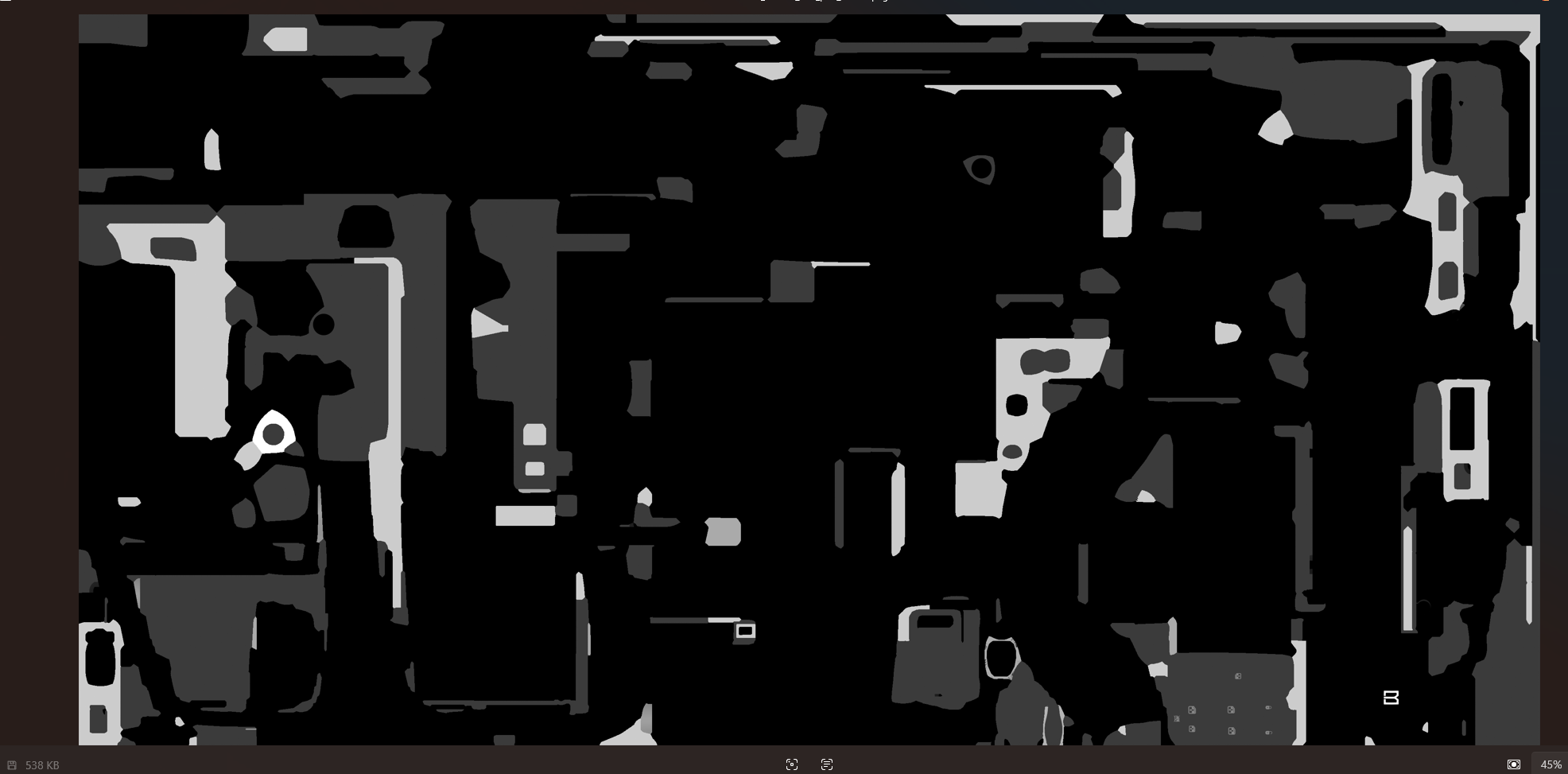
Always consider how different maps interact. A detailed 4K normal map can hide imperfections in lower-resolution roughness or metallic maps.
Last modified:
April 16, 2026
Was this article helpful?