Reflections
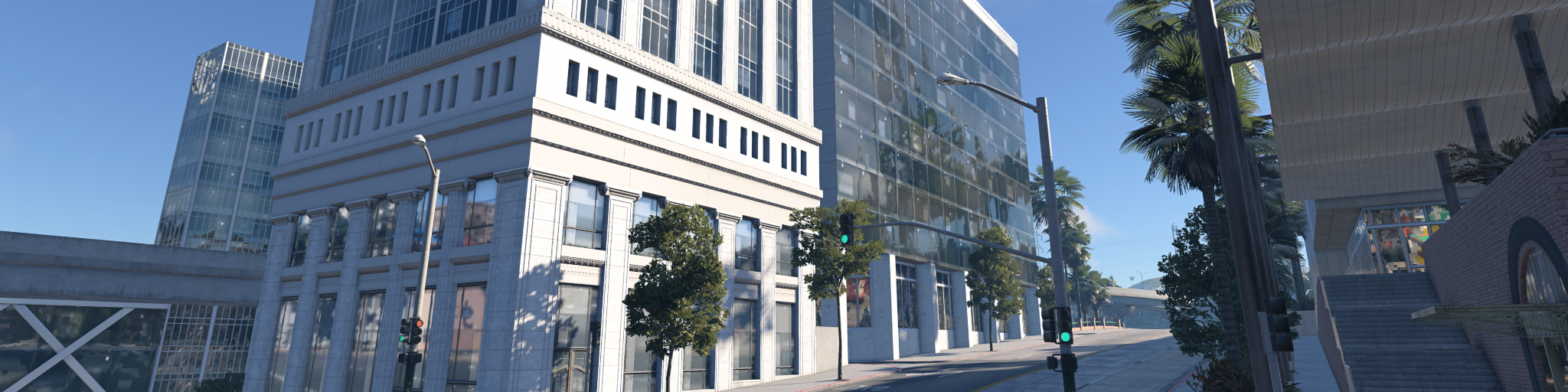
Reflections are part of physically based rendering. They make materials respond to their environment and are most visible on glossy surfaces such as car paint, glass, chrome, wet roads, polished floors, and metal parts.
In BeamNG, reflections can come from multiple sources depending on material settings, graphics settings, and the object being rendered.
Why reflections matter
Without reflections, materials can appear flat, dull, or disconnected from the scene. Good reflection setup improves:
- More believable vehicle paint and glass
- Better material readability
- Improved sense of lighting and environment
- More realistic wet, metallic, and glossy surfaces
- Consistent appearance between levels and vehicles
Physically based materials depend on reflected light for roughness, metallic, and clear coat response.
Reflection sources
BeamNG supports several reflection sources:
- Dynamic cubemaps
- Static cubemaps
- Level cubemaps / environment maps
- Planar reflections
- Screen Space Reflections
These systems work together. When one source is unavailable, the engine usually falls back to another source.
Dynamic cubemaps
Dynamic cubemaps are real-time reflection captures used for the player vehicle. They update during gameplay and provide accurate reflections of the surrounding environment.
Dynamic cubemaps are only available for the player vehicle. If dynamic reflections are disabled in graphics settings, materials fall back to the level cubemap instead.
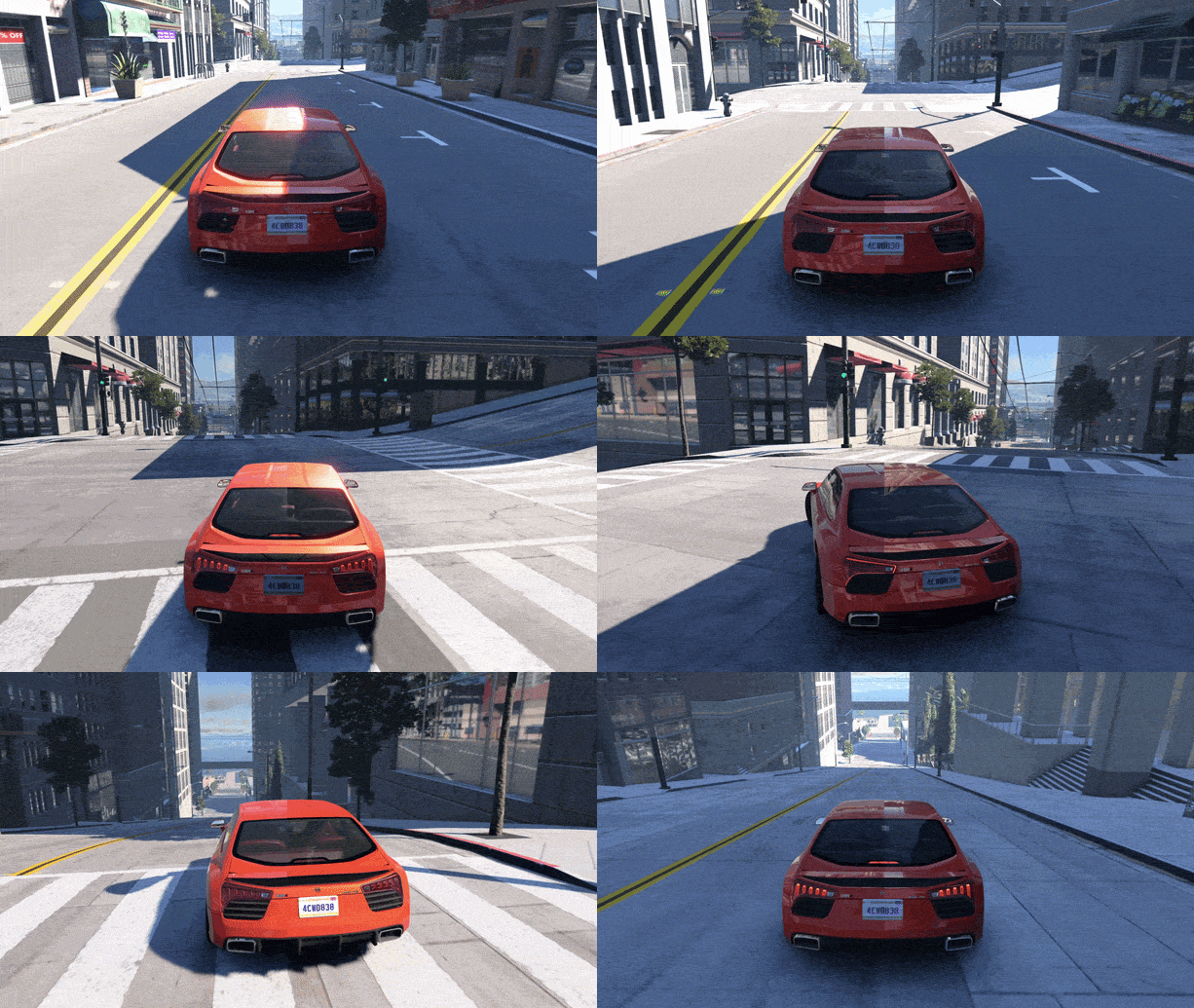 Dynamic Reflections missing on the left, and enabled on the right.
Static cubemaps
Static cubemaps are pre-captured reflection maps. They do not update in real time, but they are cheaper to render and work well for fixed environments or specific materials.
Static cubemaps can be used in two main ways:
- Per-material cubemaps
- Per-level cubemaps / environment maps
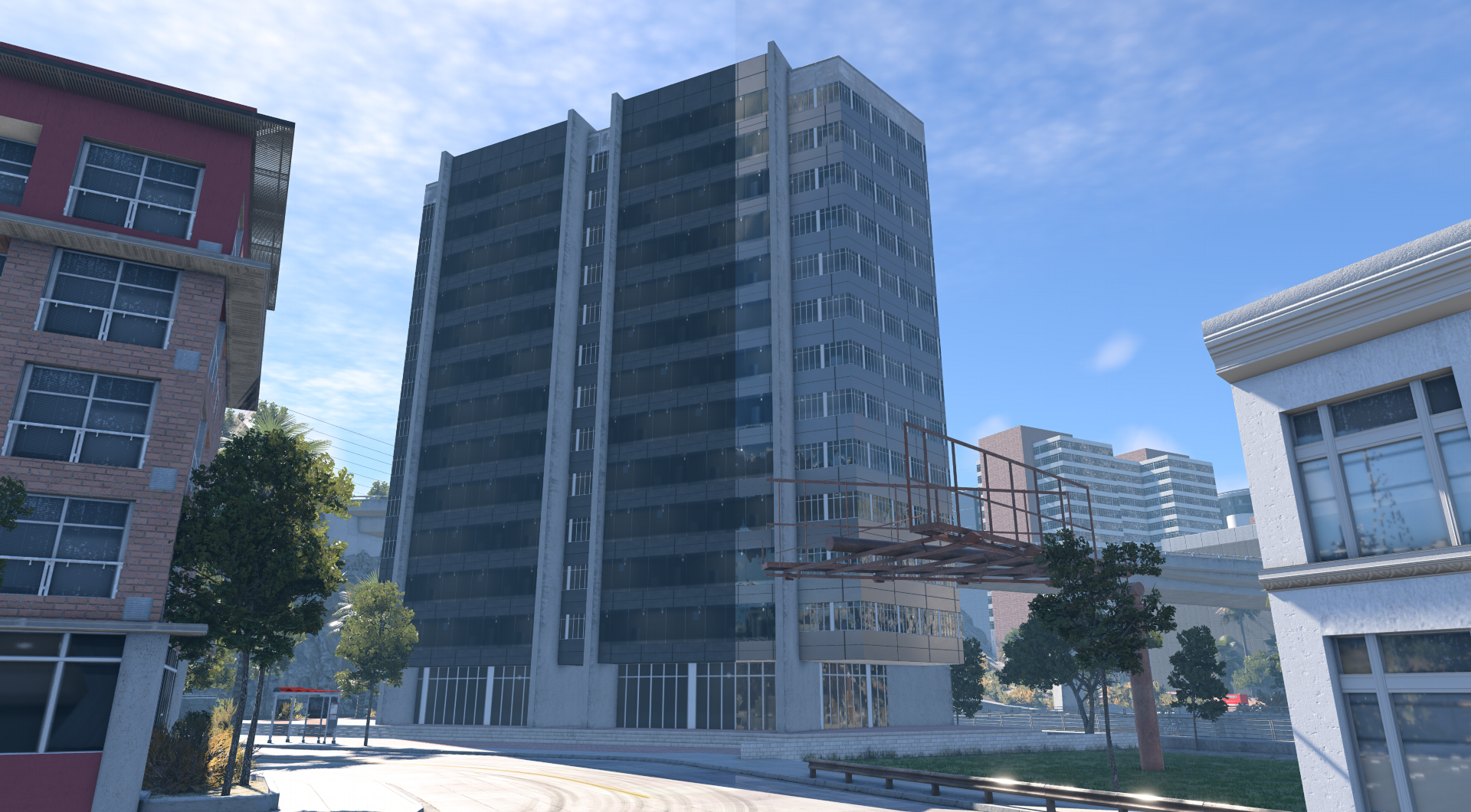 Static Reflections missing on the left, and enabled on the right.
Per-material static cubemaps
A material can reference a specific cubemap directly. Use this when a material needs a controlled reflection source, such as a showroom object, special prop, or environment-specific surface.
Use per-material cubemaps when:
- A material needs a custom reflection
- The object is static
- The default level cubemap does not match the desired look
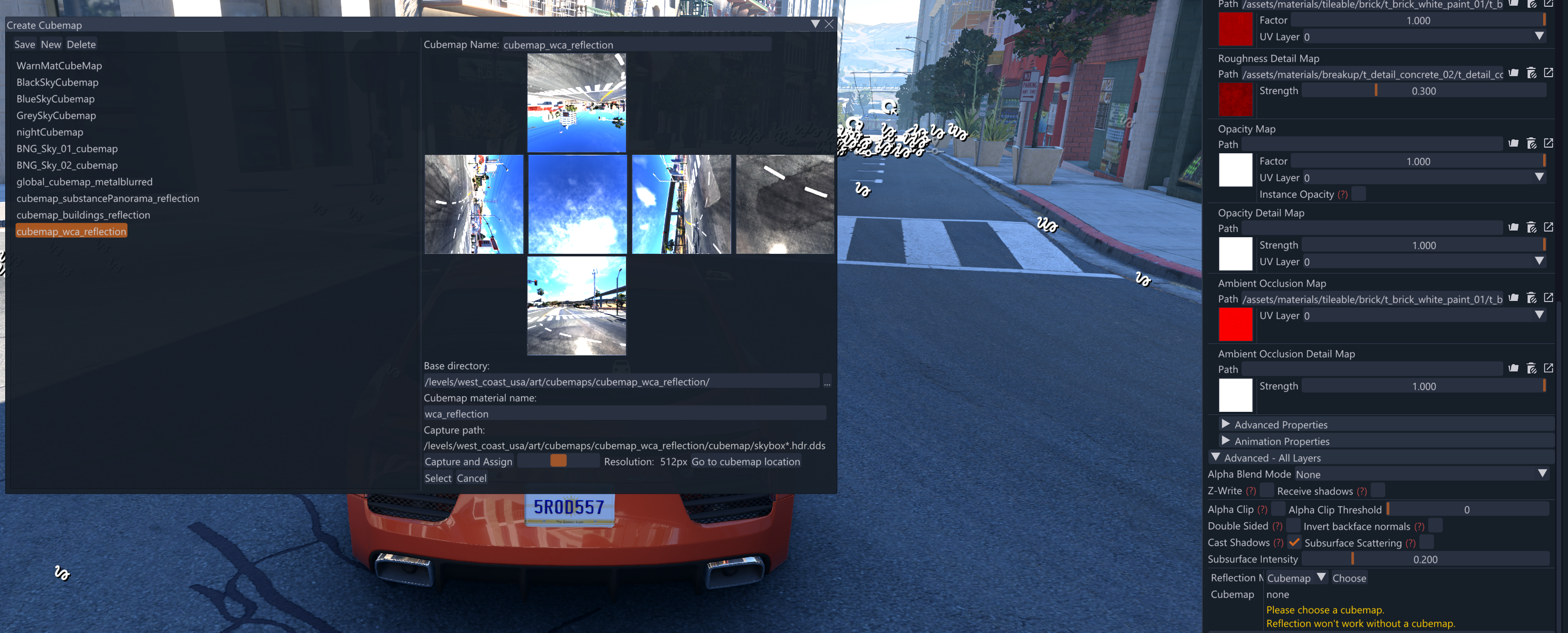
To assign a material cubemap, select the material in Material Editor, set reflection mode to Cubemap, then assign the cubemap.
Level cubemaps / environment maps
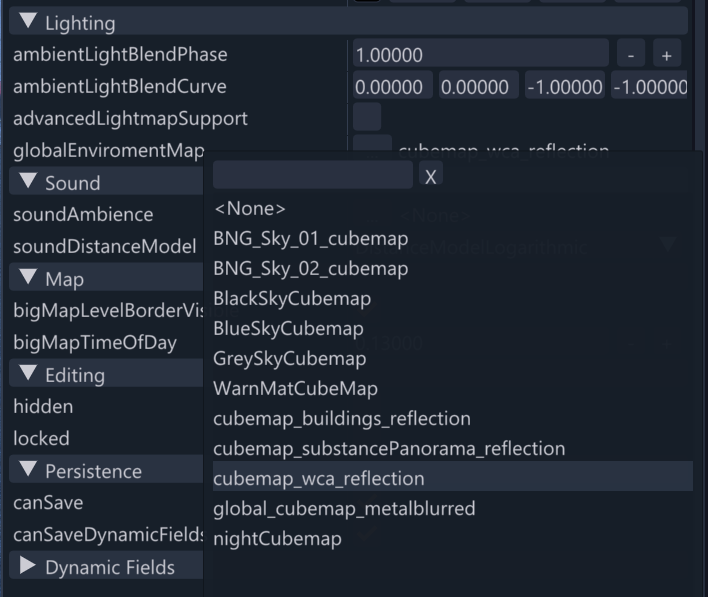
Level cubemaps represent the general environment reflection for a level. They are used by materials when reflection mode is set to Level, and may also be used as fallback reflection data.
If a v1.5 material’s reflection mode is set to None, level cubemap reflections can still be used when lighting quality is set to High or Ultra. Legacy v1 materials do not receive this automatic fallback.
Use level cubemaps for:
- General environment reflections
- Static props
- Buildings
- Road surfaces
- Materials that do not need unique cubemaps
To set the level cubemap, select the LevelInfo object in the scene tree, then assign the cubemap to globalEnviromentMap.
Reflection modes
Materials can control which reflection source they use.
None
The material does not explicitly request a reflection source.
However, a v1.5 material still receives global level cubemap reflections when Lighting Quality is set to High or Ultra.
Use this for materials where reflections are not needed or should be very subtle.
Level
The material uses the level cubemap environment map.
This is the recommended option for most static environment materials that need reflections without a custom cubemap.
Cubemap
The material uses a specific assigned cubemap.
Use this when the material needs a custom static reflection source.
Planar reflections
Planar reflections are used for flat reflective water surfaces. Unlike cubemaps, which capture the environment from a point, planar reflections render a mirrored view of the scene from the water surface. This makes them much more accurate for large flat surfaces.
Planar reflections are available only on select object types:
- WaterPlane
- WaterBlock
- River
Use them mainly for water rendering, where reflections of the sky, terrain, vehicles, and nearby objects need to line up with the water surface.
Planar reflections require Lighting Quality to be set to Low or higher. On Lowest Lighting Quality (Basic Lighting), water objects use their fallback cubemap instead.
Compared to cubemaps or Screen Space Reflections , planar reflections are relatively expensive because the scene needs to be rendered again from the reflected view. Use them only where the visual improvement is worth the performance cost. Since version 0.40, water can receive Screen Space Reflections on top of its planar or cubemap reflection, which makes it possible to disable planar reflections on many water objects. See SSR on water .
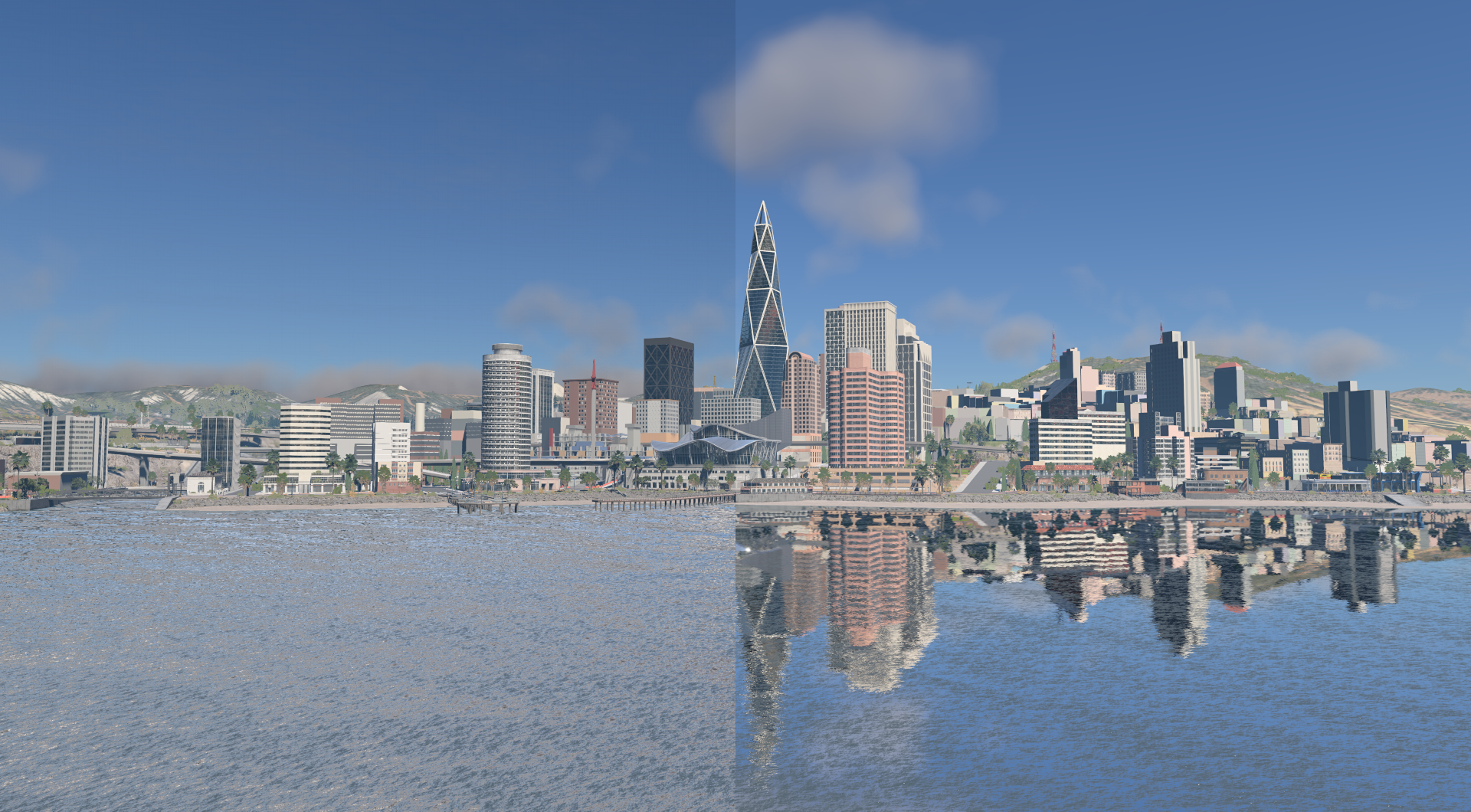 Planar Reflections missing on the left, and enabled on the right.
Planar reflection settings:
- cubemap - Fallback cubemap used when planar reflections are not available. This is used when fullReflect is disabled, when Lighting Quality is Lowest, or when planar reflections cannot be rendered. If no cubemap is assigned, the water reflects the current sky cubemap.
- fullReflect - Enables planar reflections. When disabled, the water object uses the assigned fallback cubemap instead, plus Screen Space Reflections when they are enabled.
- reflectivity - Controls how strong the reflection appears on the water surface. Higher values make reflections more visible.
- reflectPriority - Controls update priority when multiple reflective water objects exist. Higher priority objects are more likely to be updated first.
- reflectMaxRateMs - Minimum time between reflection updates, in milliseconds. Lower values update more often but cost more performance. Higher values are cheaper but may make reflections update less smoothly.
- reflectDetailAdjust - Adjusts the rendered detail level used for the reflection view. Lower values can improve performance by reducing detail in the reflected scene.
- reflectNormalUp - Forces reflection calculations to use an upward-facing normal. Useful for mostly flat water surfaces.
- useOcclusionQuery - Uses occlusion queries to avoid rendering reflections when the water surface is not visible. This can improve performance.
- reflectTexSize - Resolution of the planar reflection texture. Higher values improve reflection sharpness but increase GPU cost.
Screen Space Reflections
Since version 0.40, BeamNG supports Screen Space Reflections (SSR). Instead of capturing the environment from a fixed point like a cubemap, SSR traces reflection rays through the depth of the image that is currently on screen. It reflects exactly what the camera sees, in the correct place, so nearby objects, the ground under a vehicle, or a wet road reflecting the car above it line up with the scene.
SSR is a screen-space effect: it can only reflect what is visible on screen. When a reflection ray leaves the screen, hits the sky, or reaches geometry that is hidden behind something else, SSR has no information and the material falls back to its usual cubemap reflection. In practice this means SSR adds accurate local reflections on top of the existing reflection setup; it does not replace cubemaps.
How SSR combines with cubemaps
For every reflective pixel, the renderer first evaluates the normal cubemap reflection (dynamic, static, or level cubemap). Where SSR finds a valid hit, the traced result replaces the cubemap contribution for that pixel. Where SSR misses, the cubemap stays. The transition is blended, so partially valid hits fade between both sources.
For content creators this means:
- Materials still need a proper reflection setup. SSR does not work without a cubemap fallback, and users can turn SSR off.
- SSR follows material roughness. Smooth surfaces such as glass, chrome, car paint, and wet roads get sharp traced reflections. Rough surfaces are skipped and keep their blurred cubemap reflection.
- Clear coat materials reflect through their clear coat layer, so car paint reflects correctly without changing the base color reflection.
- A vehicle reflected in a wet road, a building reflected in a puddle, or the ground reflected in the lower half of a car body are the typical cases where SSR improves the image most.

Screen Space Reflections Off
Screen Space Reflections On
Quality and requirements
SSR is controlled by Screen Space Reflections in the graphics options.
| Setting | Effect |
|---|---|
| Off | SSR disabled. Materials use cubemap reflections only. |
| Low | Reflections traced at quarter resolution. Cheapest option, softer reflections. |
| Medium | Reflections traced at half resolution. Good balance for most systems. |
| High | Reflections traced at full resolution. Sharpest result, highest cost. |
SSR requires:
- Lighting Quality set to High or Ultra (Advanced Lighting 1.5).
- A renderer with Shader Model 6 support: Direct3D 12 or Vulkan . SSR is not available on Direct3D 11.
The reflection is traced at the current render resolution before upscaling and uses the previous frame for temporal stability, so it works together with the anti-aliasing and upscaling options.
SSR on water
Water objects (WaterPlane, WaterBlock, River) receive SSR on top of their normal reflection. When SSR finds a hit, it is blended over the planar reflection or, when planar reflections are disabled, over the fallback cubemap.
This makes SSR a cheaper alternative to planar reflections for many water surfaces:
- With SSR enabled, fullReflect can be turned off on the water object. The scene is no longer rendered a second time from the mirrored view, and the visible reflections come from SSR with the cubemap covering everything off screen.
- Planar reflections remain the most complete option for large calm water where the reflected content is often outside the camera view, such as a lake reflecting distant mountains and sky.
- Always assign a cubemap to water objects that rely on SSR. It fills in whatever SSR cannot see and is the only reflection source when the user has SSR disabled.
Interior glass and BlackSkyCubemap
Vehicle interiors usually have an inner window surface material separate from outer. SSR can only reflect on first reflective layer, this means if SSR was enabled on interiro glass, it wouldnt be visible outside of vehicle. The official vehicles solve this by assigning the special BlackSkyCubemap to the inner glass material, which suppresses its cubemap and ssr reflection.
SSR follows the same convention. A translucent material that uses BlackSkyCubemap and no dynamic cubemap does not receive SSR itself, while the surfaces seen through it keep their reflections, reduced by the glass opacity.
"etk800_glass_int": {
    "translucent": true,
    "cubemap": "BlackSkyCubemap",
    "castShadows": false
}
Use BlackSkyCubemap on any interior see-through glass, that shouldn’t disable ssr behind it. Regular outer glass should keep its normal cubemap or dynamic cubemap setup so it receives SSR.
SSR limitations
- Only what is visible on screen can be reflected. Reflections of objects outside the view or behind other objects fade to the cubemap fallback.
- Reflections near the screen edges and on very rough surfaces are handled by the cubemap.
- Glass and water receive SSR, but they are not themselves reflected by SSR. A car reflected in water is traced from the car, not from another glass surface.
- The effect uses the previous frame, so very fast camera cuts can show a brief reflection update.
- SSR is only rendered for the main camera view. Mirrors, dynamic cubemaps, and secondary cameras keep using cubemap reflections.
Capturing cubemaps
Static cubemaps can be captured using:
World Editor → Window → Cubemap Editor
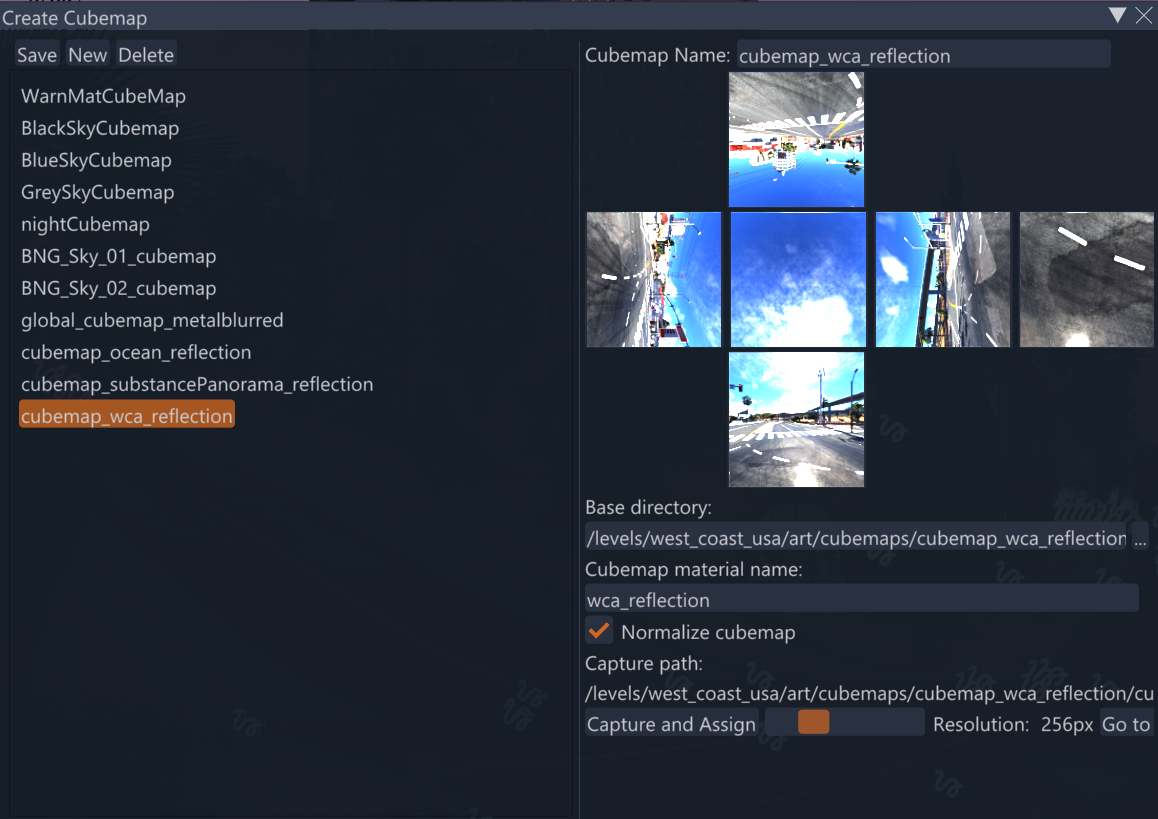
A typical workflow:
- Open the level in the World Editor.
- Open Cubemap Editor.
- Select or create a cubemap.
- Press Capture and Assign.
- Save changes.
Capture cubemaps from locations that represent the surrounding environment. For large areas, use a neutral location that does not overrepresent one landmark or lighting condition.
Cubemap color, intensity and lighting
Static cubemaps can be normalized using ambient lighting / global illumination information. This keeps reflection intensity and color aligned with the level lighting instead of making cubemaps appear too bright or too dark.
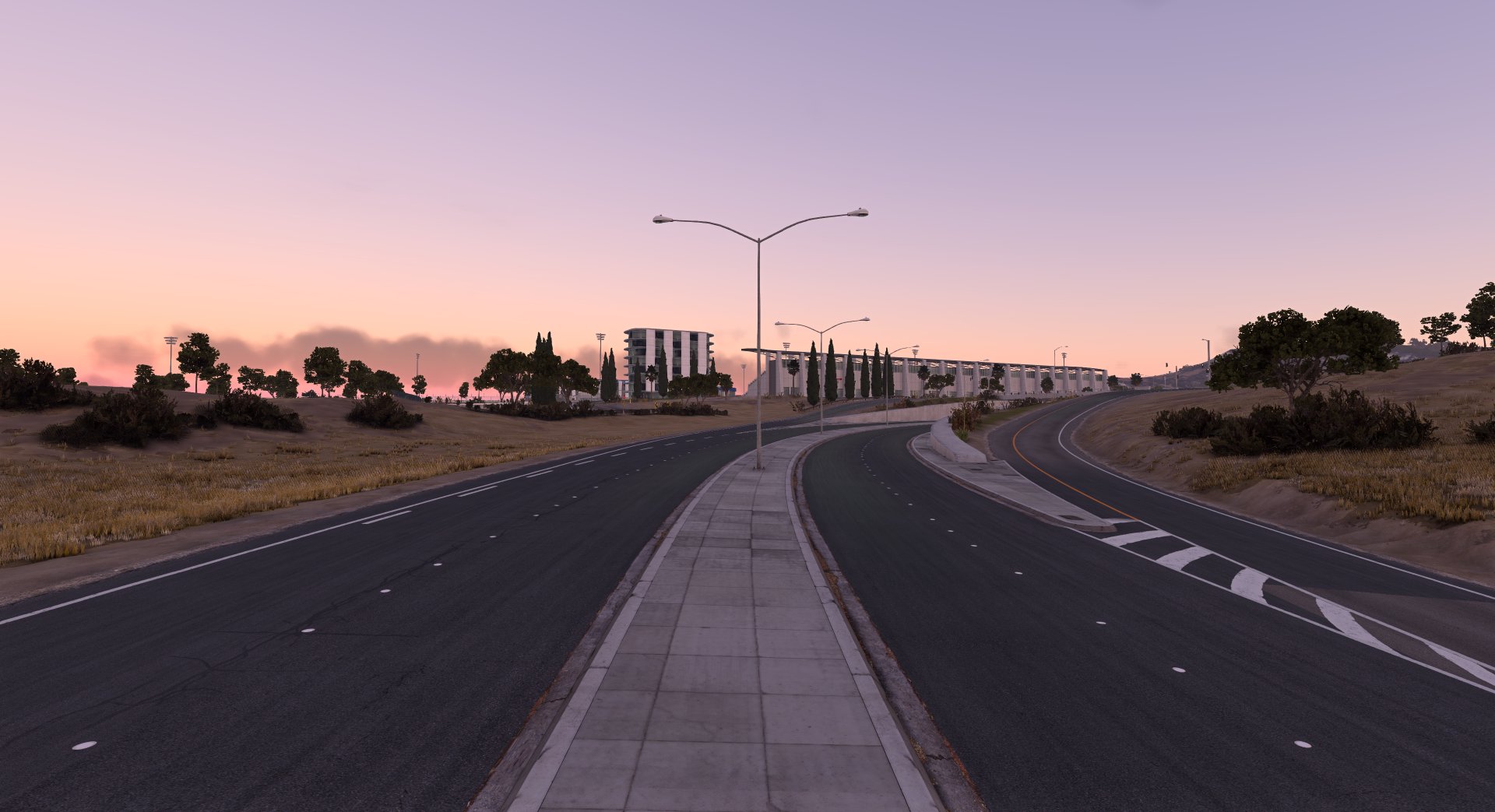
Normalization Off
Normalization On
Evaluate reflections together with:
- Time of day
- Weather
- Ambient lighting / Global illumination
- Material roughness and metallic values
Best practices
- Use Level reflections for most environment materials.
- Use Cubemap only when a material needs a specific custom reflection.
- Provide a fallback cubemap for water objects.
- Test reflective materials with different lighting quality settings.
- Check reflections at different times of day and weather conditions.
- Use roughness to control reflection sharpness instead of disabling reflections entirely.
- Remember that dynamic cubemaps are only available for the player vehicle.
- Treat Screen Space Reflections as an enhancement. They are off in every preset, so the scene must look correct with cubemaps alone.
- Prefer SSR with fullReflect disabled for small or close-up water surfaces, and planar reflections only where large off-screen content matters.
Common issues
Reflections look missing
Possible causes:
- Reflection mode is set incorrectly
- No valid level cubemap is available
- Graphics settings disable certain reflection features
- Material roughness is too high
Reflections do not match the environment
Capture or assign a more appropriate cubemap.
Reflections differ between users
Reflection quality depends on graphics settings. Make sure materials have proper fallback behavior through level cubemaps.
Water reflections look incorrect
Possible causes:
- Planar reflections are disabled or unsupported by the object type
- Cubemap reflection is not set for water object
- The water surface normal or wave settings make reflections appear distorted
Screen Space Reflections are missing
Possible causes:
- Screen Space Reflections is set to Off in the graphics options (this is the default in all presets)
- Lighting Quality is below High
- The game runs on Direct3D 11, which does not support SSR
- The material is too rough for SSR and only shows its cubemap reflection
- The reflected object is outside the camera view or hidden behind other geometry
Interior glass shows doubled reflections
Assign BlackSkyCubemap to the inner glass material. See Interior glass and BlackSkyCubemap
.
Related pages
- Lighting Techniques - specular occlusion and how it darkens reflections in occluded areas.
- Ambient Lighting - sky and environment lighting that feeds cubemap reflections.
- Lighting Quality - which presets enable dynamic reflections, mirrors, and the requirements for SSR.
- Anti-aliasing and Upscaling - render resolution effects on screen space effects.
- Post Process Effects
- the
PostFxSSSRObjectand other post effects.
Was this article helpful?