HDR Adjustment
HDR makes highlights brighter and colors richer on an HDR TV or monitor. The picture only looks right when the in-game sliders match your screen. The settings are in Options > Graphics > Brightness & HDR.
Turn HDR on
- Turn HDR on for the screen itself:
- Windows: Settings > System > Display > Use HDR.
- Linux: log in to a Wayland session, then turn HDR on in the desktop display settings. On KDE Plasma: System Settings > Display & Monitor > HDR. On GNOME: Settings > Displays > HDR. On Steam Deck or SteamOS: Settings > Display > HDR. X11 sessions do not support HDR.
- PlayStation 5: Settings > Screen and Video > Video Output > HDR.
- In the game, open Options > Graphics > Brightness & HDR and turn on HDR Output.
If HDR Output is greyed out, the game cannot see an HDR screen. Check that HDR is on in the system settings above, and that the game is shown on that screen.
On a TV, use a picture mode that leaves brightness to the game, often called Game or HGiG. A TV that changes brightness on its own will fight these sliders.
Adjust the picture
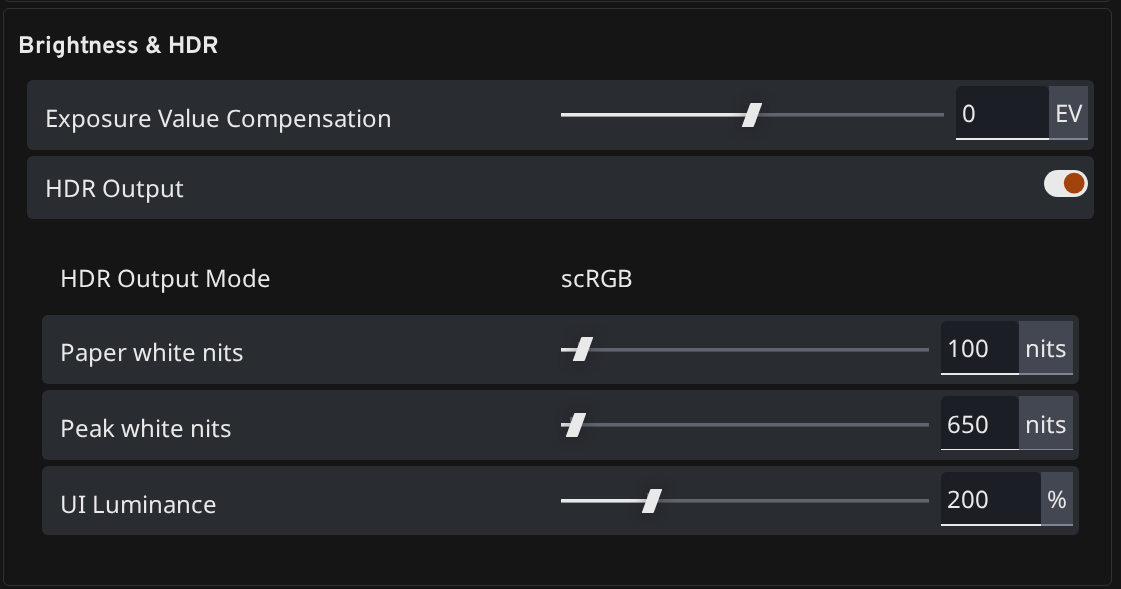
| Setting | What to change |
|---|---|
| Peak white nits | How bright the sun, headlights, and reflections can get. Set this to the peak brightness of your screen. A typical HDR TV or OLED is around 600 to 1000. A bright monitor can be 1000 or more. |
| Paper white nits | How bright normal white looks: menus, text, and a white car in daylight. Raise it if the picture looks dull. Lower it if it looks washed out. Start around 200 in a dark room and 250 to 300 in a bright room. |
| UI Luminance | Brightness of menus and the HUD only. Use it when the menus look too bright or too dim next to the game. |
| Exposure Value Compensation | Brightness of the 3D scene. Use it when the world looks too dark or too bright and the menus already look fine. |
A good result: white menu text looks white, and the sun and reflections on the car are clearly brighter than that text.
If it still looks wrong
A badly set HDR picture can look washed out, gray, milky, hazy, too dark, with crushed blacks, blown-out or clipped highlights, flat contrast, dull or oversaturated colors, or menus and the HUD that are too bright or too dim.
- Washed out or gray. Lower Paper white nits, or switch the TV to Game / HGiG.
- Too dark. Raise Paper white nits. If only the world is dark, lower Exposure Value Compensation.
- Bright spots are flat or blown out. Set Peak white nits closer to what your screen can actually show.
- Menus are too bright or too dim. Change UI Luminance.
Was this article helpful?